What Is Daftari?
Daftari is an accounting and business management system built for small and medium businesses in Tanzania. It replaces handwritten ledgers, Excel spreadsheets, and separate receipt books with one organized system that handles everything — sales, purchases, stock, payroll, and financial reports.
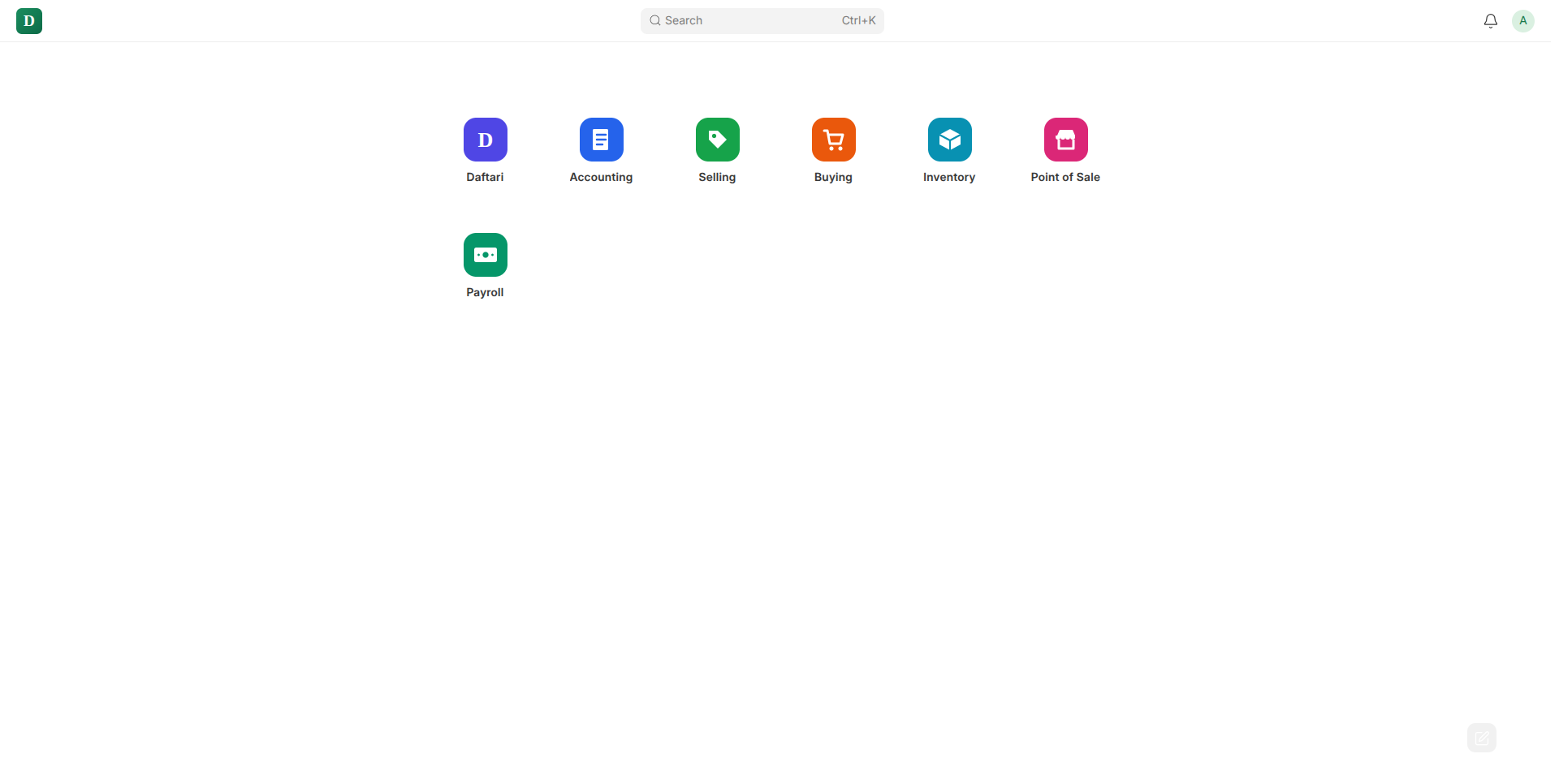
Invoicing
Create professional sales invoices and purchase bills in seconds. Track who owes you and who you owe.
Stock Control
Know exactly how much stock you have at any time. Get automatic alerts when you sell below purchase price.
Payroll
Pay your employees correctly. Daftari calculates PAYE, NSSF, SDL, and WCF automatically every month.
Reports
See your Profit & Loss, Balance Sheet, and cash position any day of the month — not just at year end.
💼 Selling
- Sales Invoices
- Sales Quotes
- Customer records
- Delivery Notes
🛍️ Point of Sale
- Fast checkout terminal
- Camera barcode scanner
- Shift management
- Mobile-friendly
🛒 Buying
- Purchase Invoices
- Goods Received Notes
- Supplier records
💳 Payments
- Cash payments
- Bank transfers
- Mobile Money (M-Pesa, etc)
📦 Stock
- Stock levels per warehouse
- Stock movements
- Batch tracking
👔 Payroll
- Employee management
- Salary slips
- PAYE · NSSF · SDL · WCF
📑 Accounts
- General Ledger
- Trial Balance
- Balance Sheet
- Profit & Loss
Setting Up Your Business
Before you record your first sale, spend 15 minutes filling in your company details. You only do this once.
Enter Your Company Information
Go to Setup → Accounting Settings. Fill in your business name, logo, phone number, email, TIN (Tax Identification Number), and VRN (VAT Registration Number). This information will appear on every invoice and receipt you print.
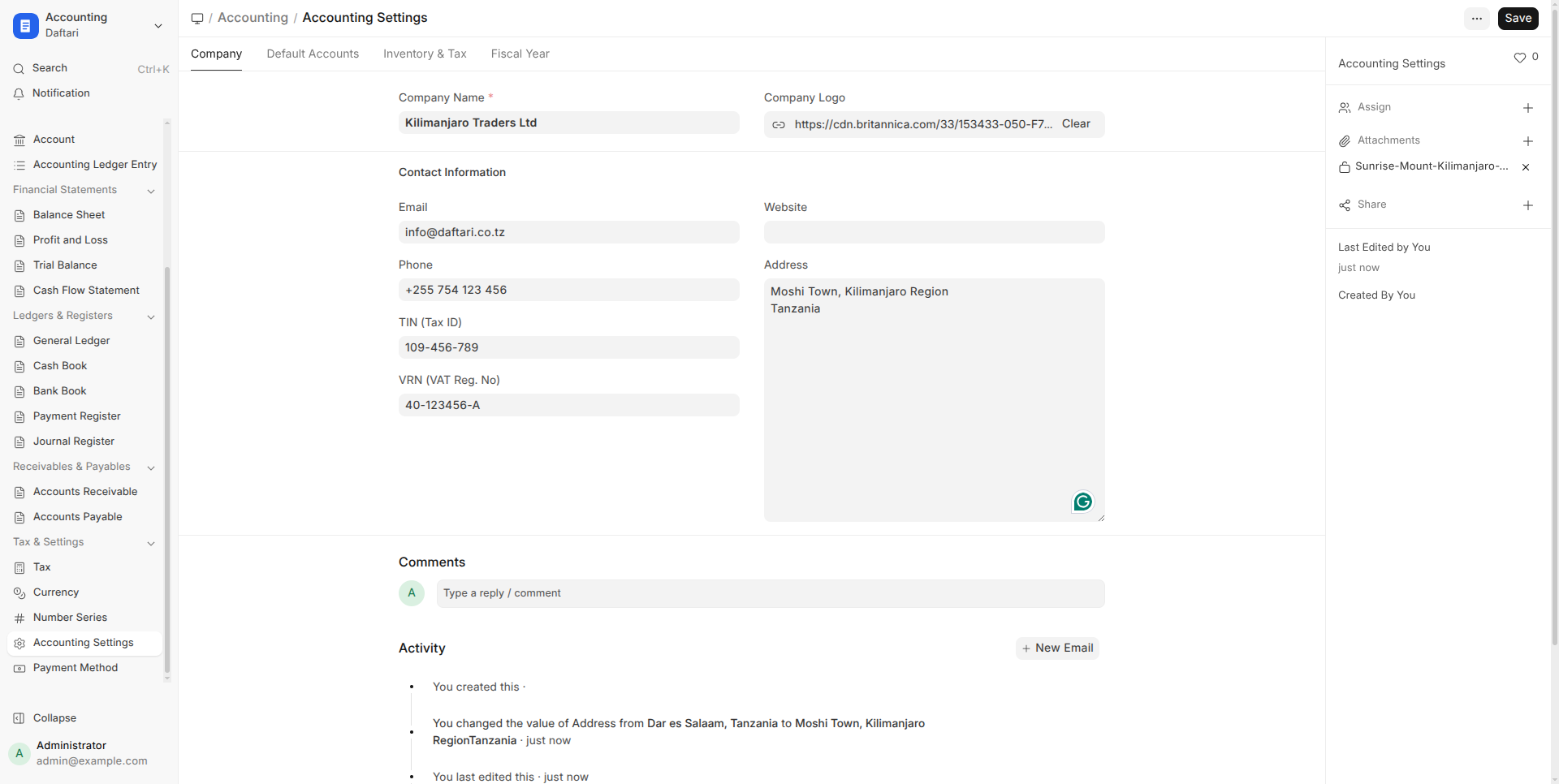
Company Name: Kilimanjaro Traders Ltd · TIN: 109-456-789 · VRN: 40-123456-A · Address: Moshi Town, Kilimanjaro Region · Phone: +255 754 123 456
Set Your Bank and Cash Accounts
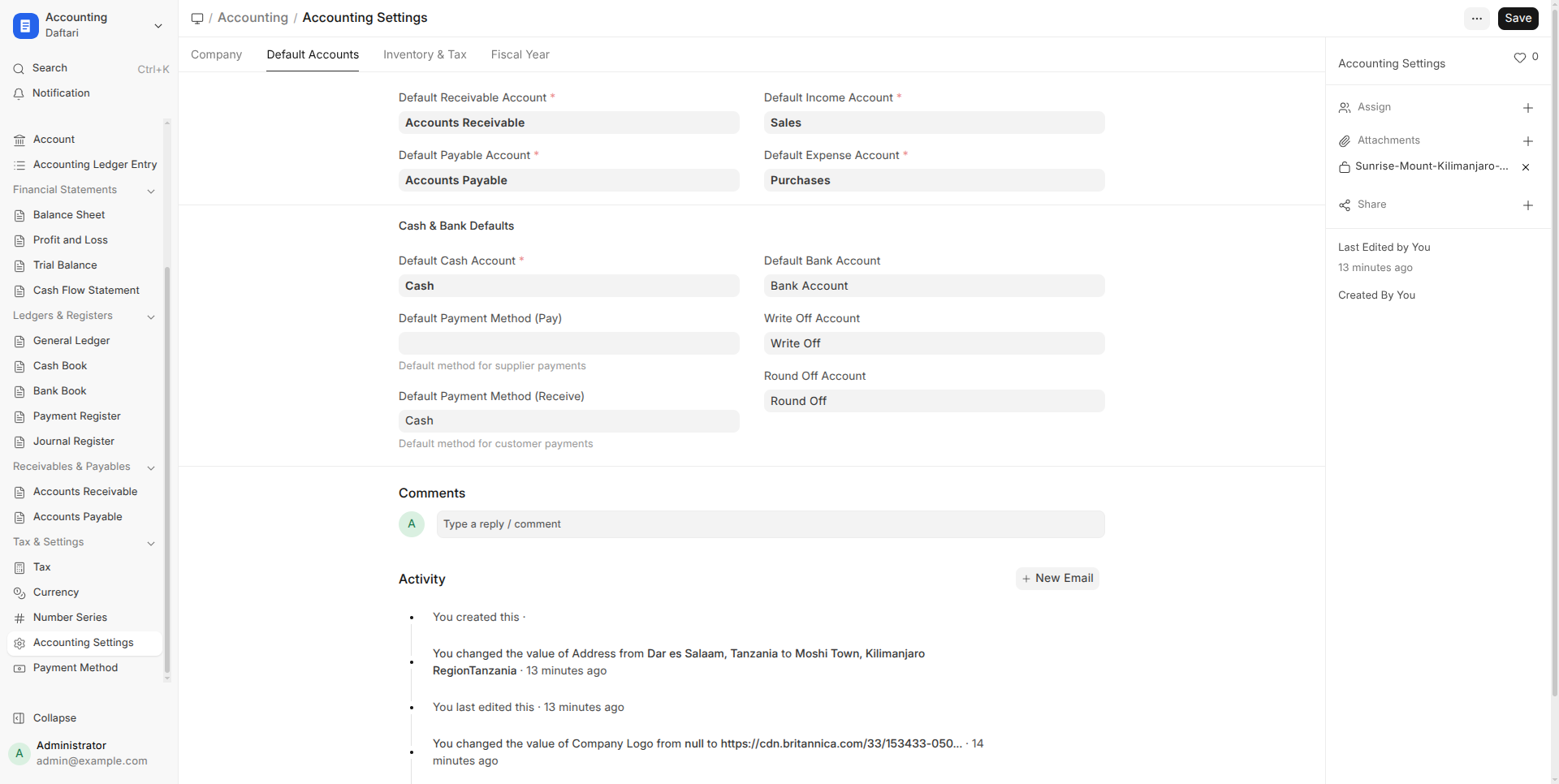
Tell Daftari which bank account and cash till you use. Go to the Default Accounts tab in Accounting Settings. Select your bank account (e.g., NMB Bank Account) and cash account. This means every payment you record will automatically go to the right account without you picking it each time.
Enter Your Opening Balances
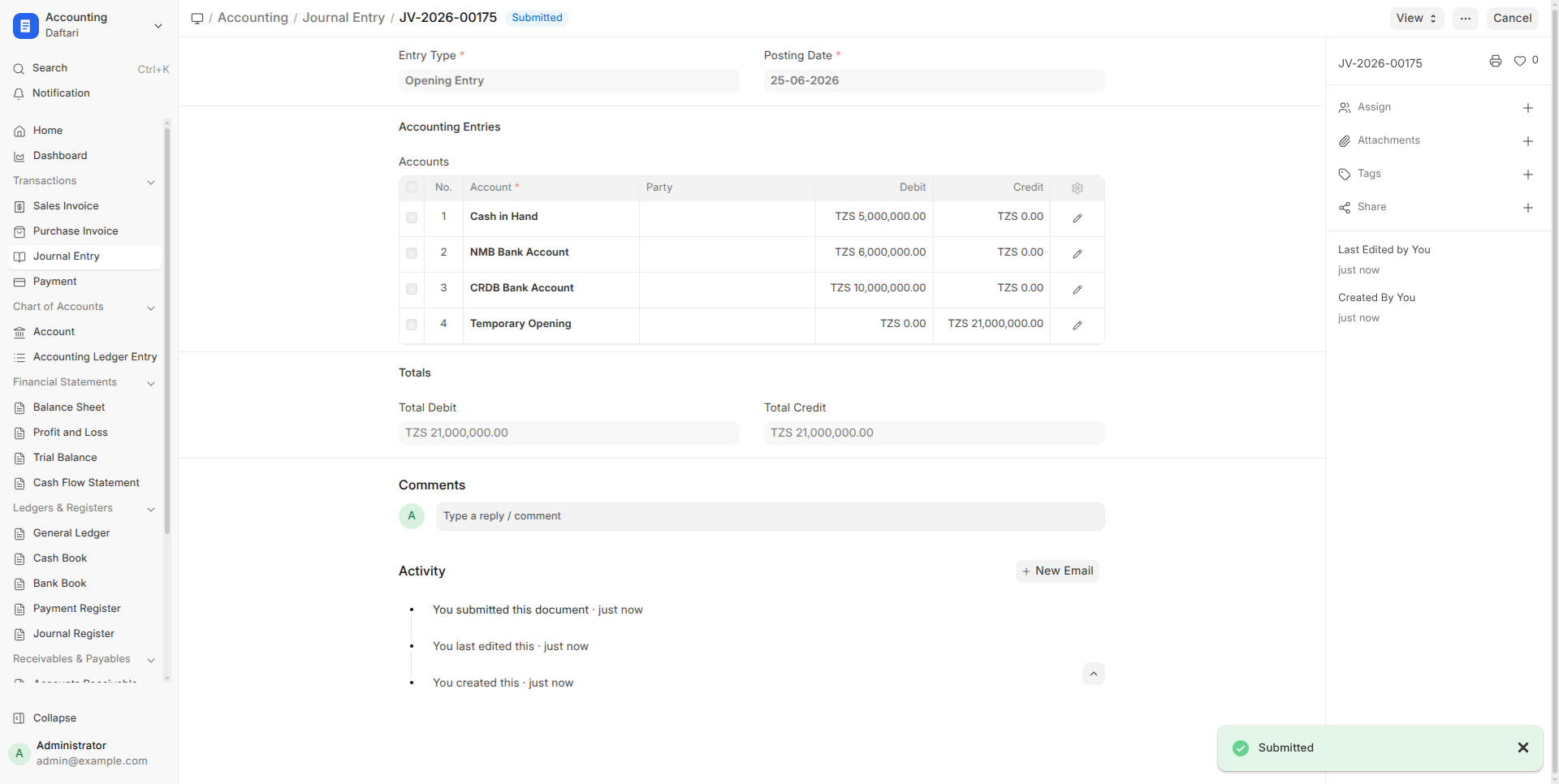
If you are switching from another system (or from manual books), you need to tell Daftari what money and assets you had on Day 1. Go to Accounts → Journal Entry → New and select Entry Type: Opening Entry.
Cash in hand: TZS 5,000,000 · NMB Bank: TZS 15,000,000 · Stock value: TZS 8,500,000 · Motor vehicle: TZS 12,000,000 · Owed to suppliers: TZS 4,200,000 · Owner capital: TZS 36,300,000. These entries must balance — total assets must equal total liabilities plus capital.
Add Your Products and Services
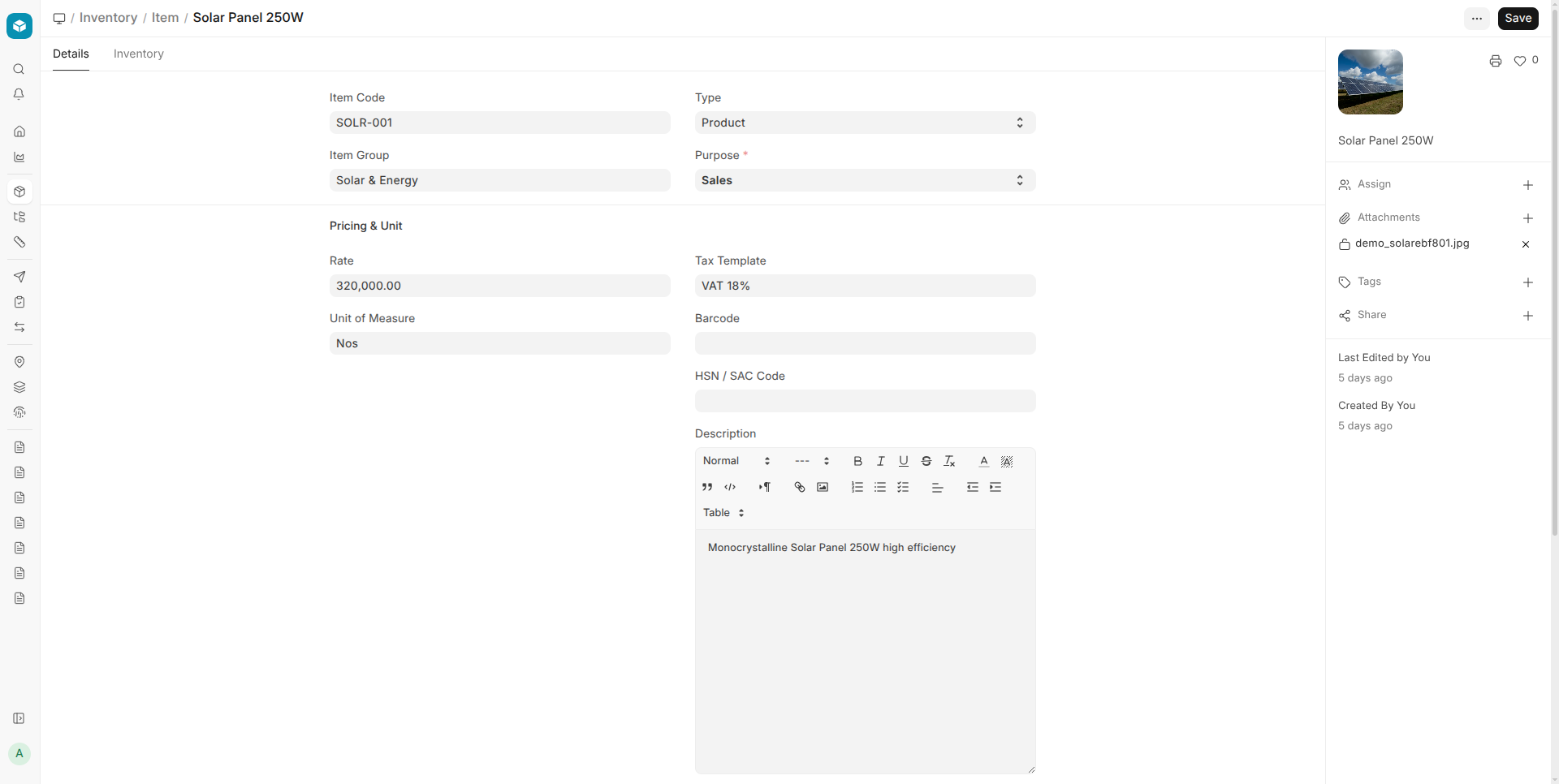
Go to Inventory → Item → New for each product you sell or buy. Set the name, type (Product or Service), selling price, and whether Daftari should track the stock quantity.
| Item Name | Type | Selling Price | Track Stock? |
|---|---|---|---|
| Rice 5kg (Nafaka) | Product | TZS 8,500 | Yes |
| Cooking Oil 2L (Bidii) | Product | TZS 9,800 | Yes |
| Delivery Service | Service | TZS 25,000 | No |
Add Your Customers and Suppliers
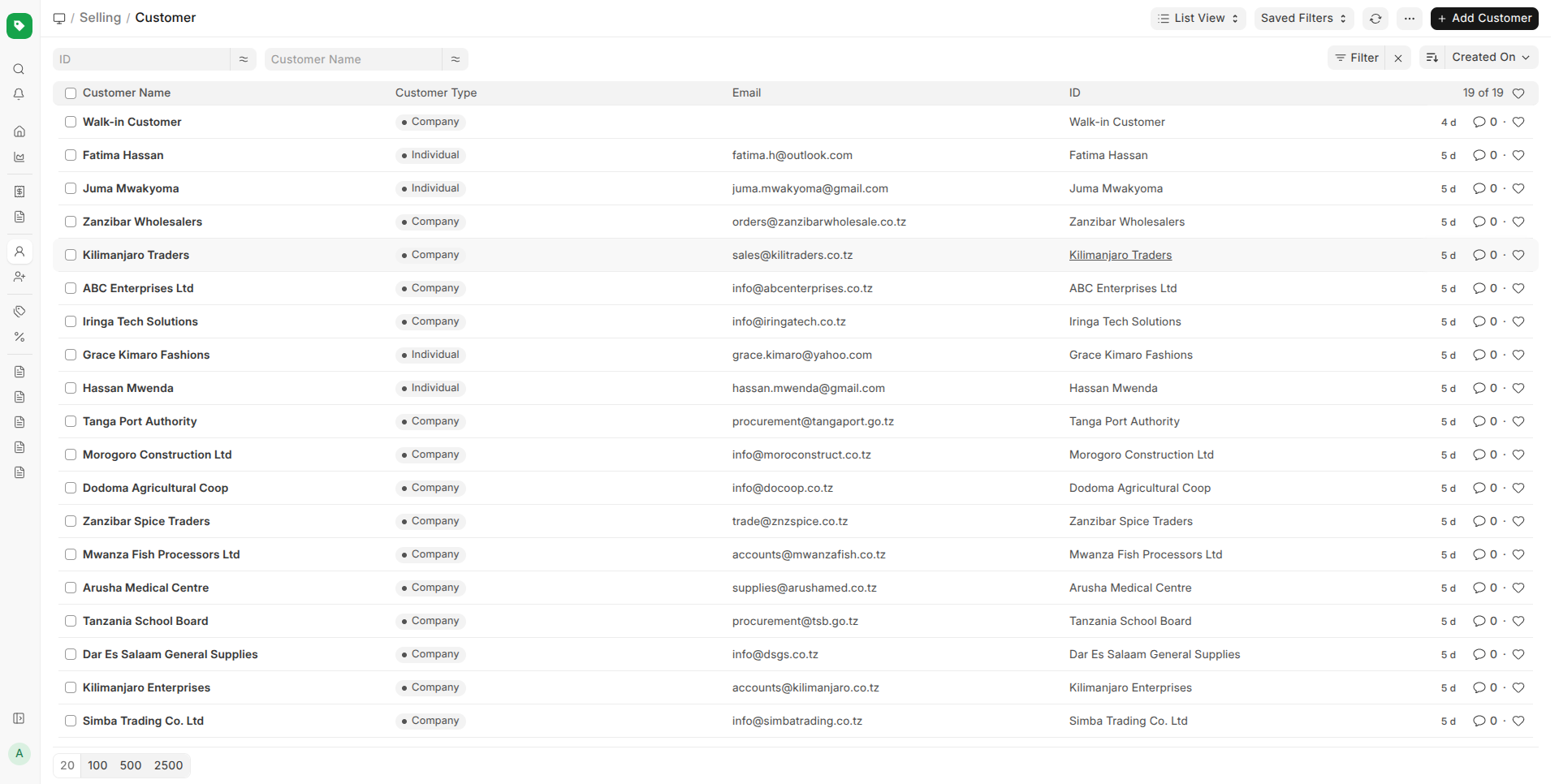
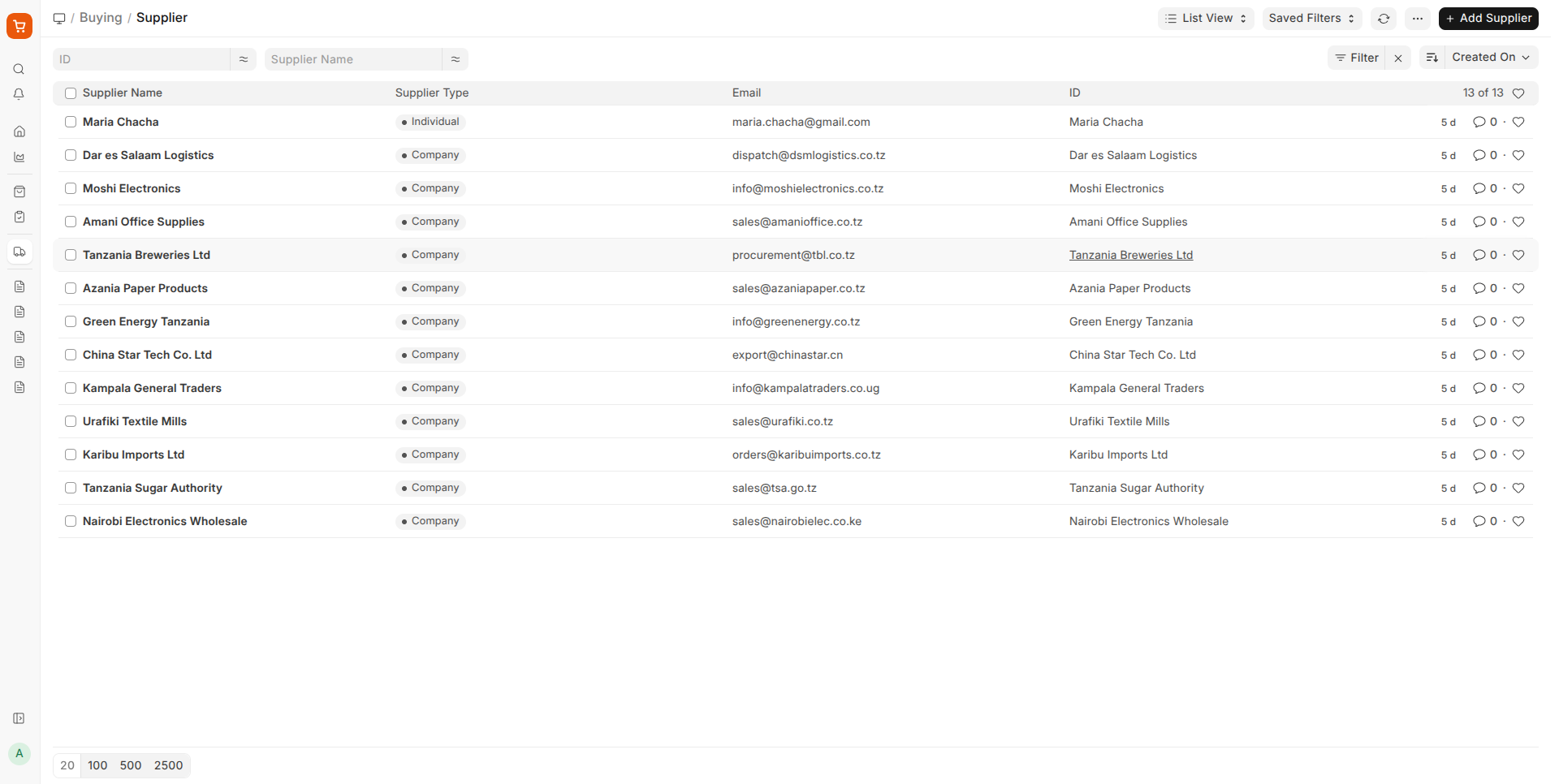
Go to Selling → Customer to add businesses or individuals you sell to. Go to Buying → Supplier to add companies you buy from. Include their phone number, email, and TIN — this will appear on invoices and help with tax filing.
Set Up Your VAT (If Registered)
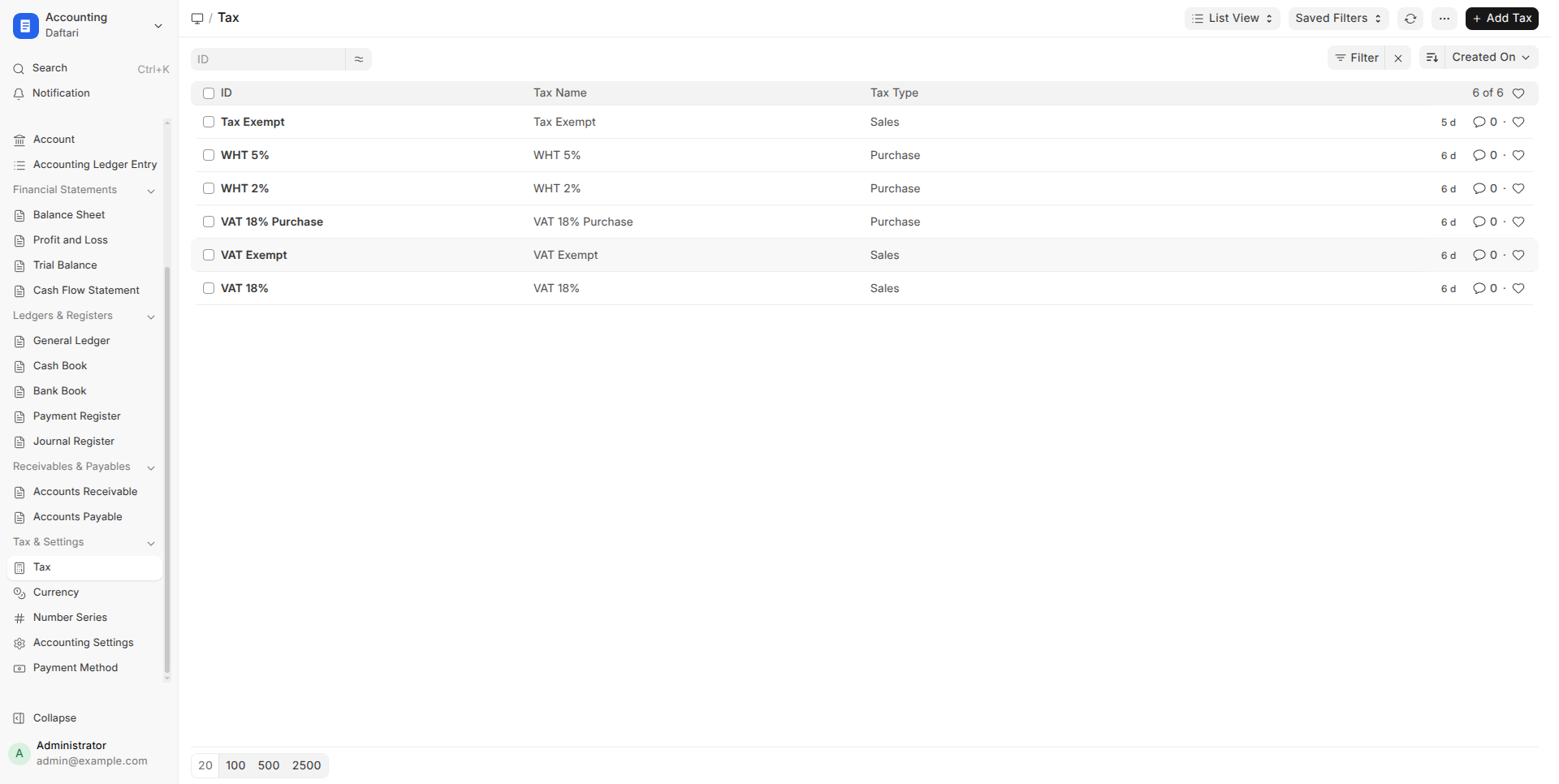
Go to Setup → Tax. Daftari comes with a Tanzania VAT 18% template already created. Link this to each item that attracts VAT. When you create an invoice with Apply Tax turned on, VAT is calculated automatically and shown as a separate line.
Daily Business Operations
Once setup is done, these are the tasks you will do every business day. Each one takes less than 2 minutes.
Making a Sale (Sales Invoice)
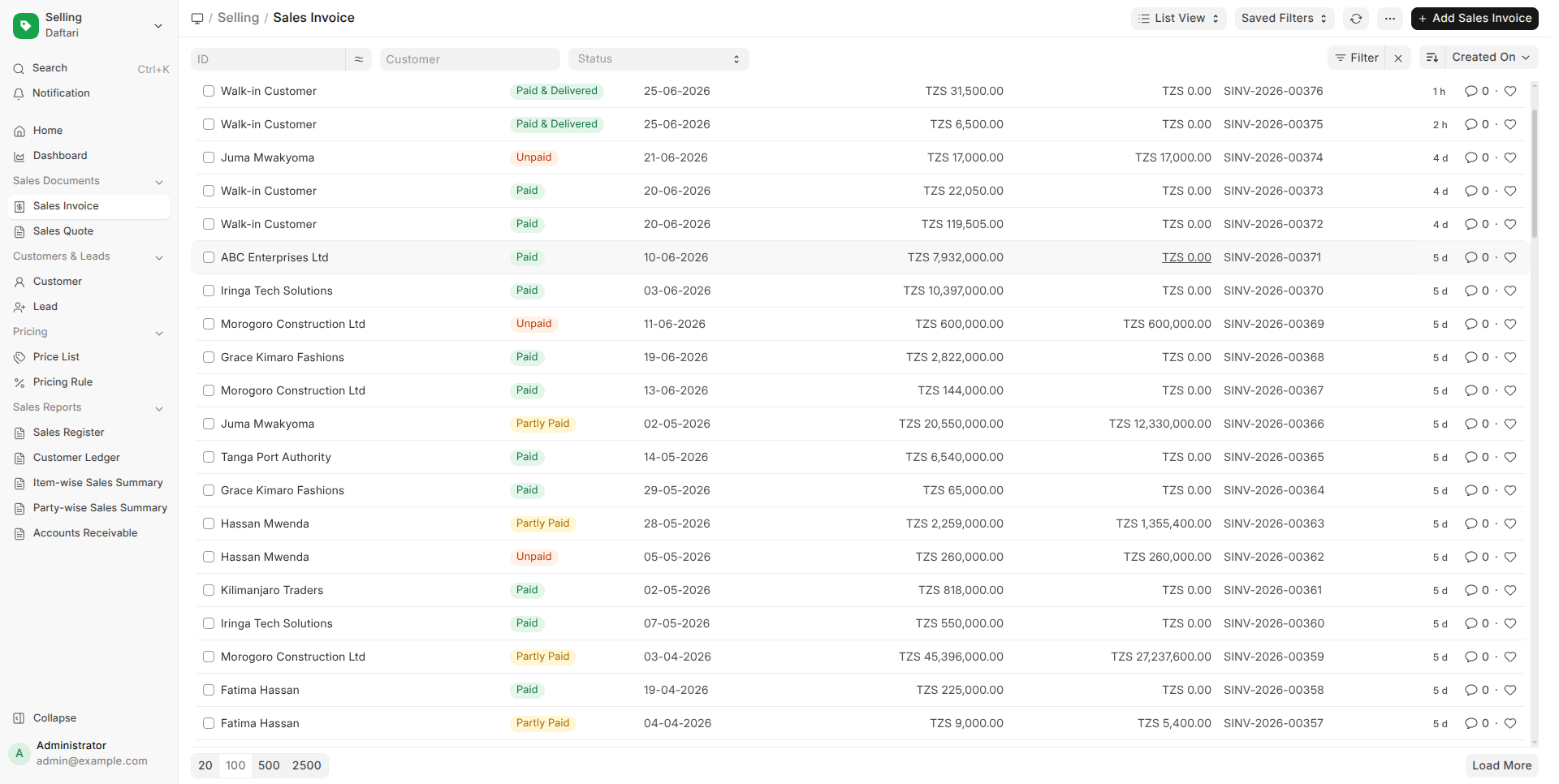
Every time you sell something, create a Sales Invoice. Go to Selling → Sales Invoice → New.
Customer: Safari Garden Restaurant · Date: 15 March 2025 · Items: Rice 5kg × 20 bags @ TZS 8,500 = TZS 170,000 | Cooking Oil 2L × 10 @ TZS 9,800 = TZS 98,000 | Sugar 1kg × 15 @ TZS 2,800 = TZS 42,000 · Subtotal: TZS 310,000 · VAT 18%: TZS 55,800 · Total: TZS 365,800 · Due Date: 14 April 2025 (30 days credit)
When you submit the invoice, Daftari automatically:
- Reduces your stock by the quantities sold
- Records the sale in your accounts (debit Accounts Receivable, credit Sales Income + VAT Payable)
- Marks the invoice as Unpaid until payment is received
Point of Sale (POS) Terminal
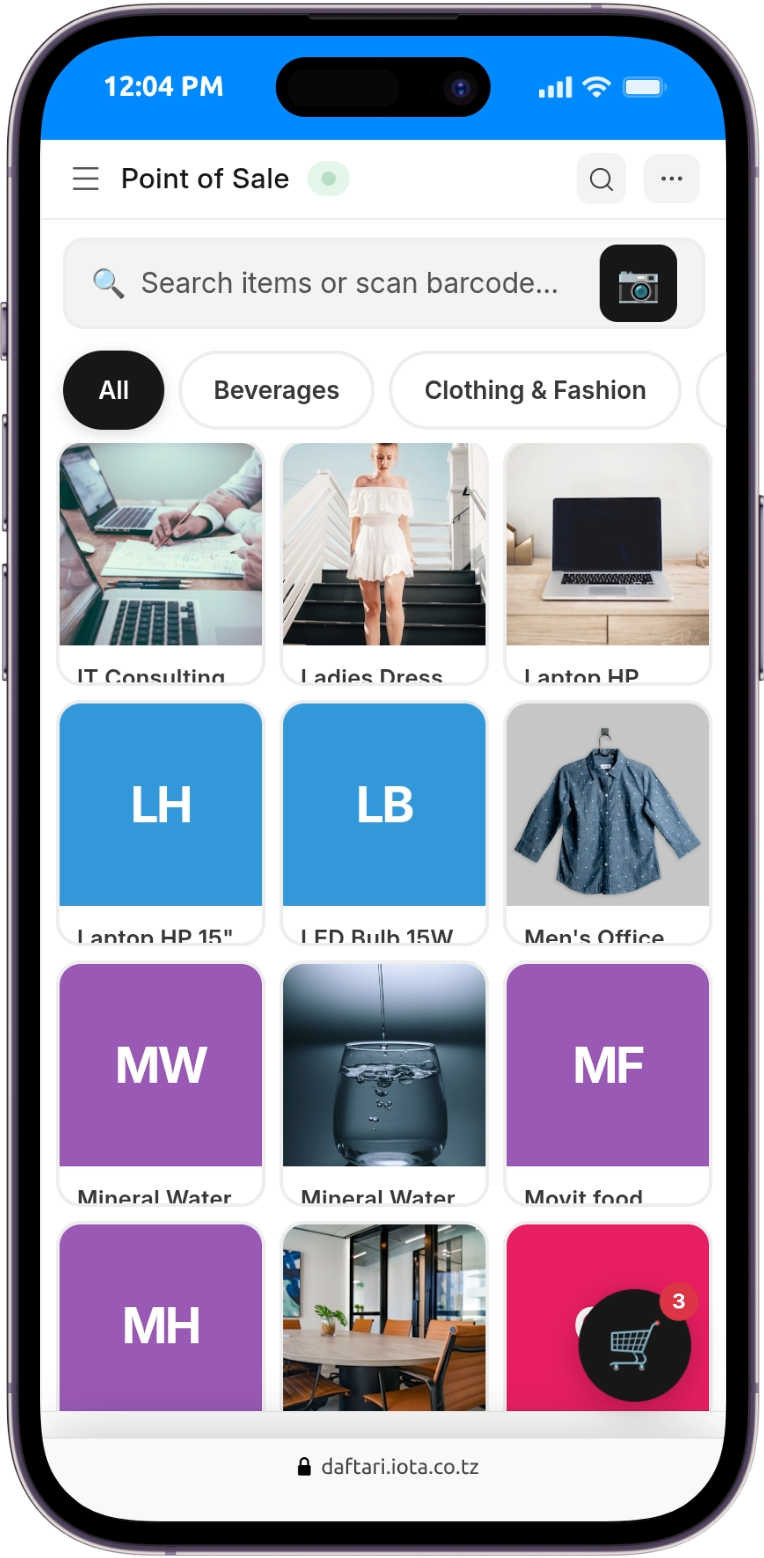
For shops, supermarkets, and retail counters — use the POS terminal at /desk/pos. It runs in your browser. No app to install. On a phone, you can use the camera to scan barcodes.
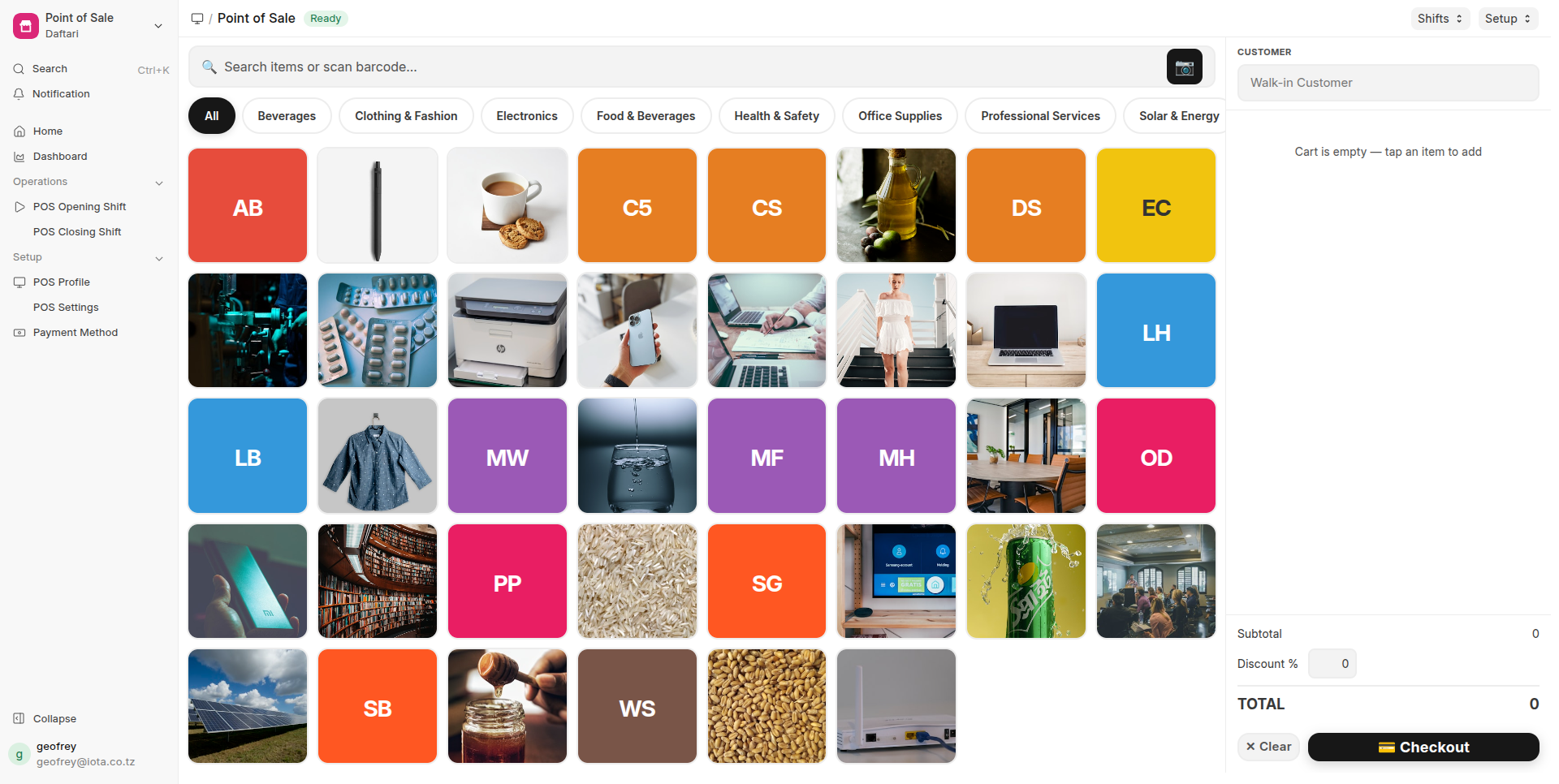
When you complete a sale through POS, Daftari automatically:
- Creates and submits the Sales Invoice (
is_pos = 1) with all items, customer, and discount - Records Accounting Ledger Entries (Debit Receivable, Credit Income + VAT)
- Deducts stock from the warehouse in real time
- Creates the payment in the background — the cashier never waits
| Feature | How It Works |
|---|---|
| Product Grid | All items shown as cards with name, barcode, and price. Tap to add to cart. Filter by item group. |
| Barcode Scanner | Built-in camera scanner via html5-qrcode. Works with EAN, UPC, Code-128, Code-39, and QR codes. Searches items locally first, then via server API. |
| Cart Management | Adjust quantities, remove items, clear cart, or apply a percentage discount to the entire sale. |
| Customer Search | Type any part of a customer name — matching results appear in a dropdown. Defaults to Walk-in Customer. |
| Checkout | Payment dialog with method selection (Cash / Bank / Mobile Money), amount tendered, and auto-calculated change. |
| Mobile Friendly | Full-width product grid with a floating cart button. Cart slides up from the bottom. Large touch targets (44px+), haptic feedback on every action. |
| Shifts (Full Mode) | Opening Shift records starting cash. Closing Shift compares expected vs actual cash and reports variance. |
| Print Receipts | After checkout, the invoice opens in Daftari Tax Invoice format. Use Ctrl+P to print to a receipt printer. |
Shop: Duka La Ushindi, Kariakoo · Cashier: Maria · Shift: Morning shift
Customer: Walk-in · Items: Rice 5kg × 2 @ TZS 8,500 | Cooking Oil 2L × 1 @ TZS 9,800 | Sugar 1kg × 3 @ TZS 2,800 | Tea Bags × 1 @ TZS 1,500
Subtotal: TZS 36,700 · Discount 5%: TZS 1,835 · Grand Total: TZS 34,865
Payment: Cash TZS 35,000 · Change: TZS 135
Time from scan to receipt: under 5 seconds — no waiting
Receiving Payment from a Customer
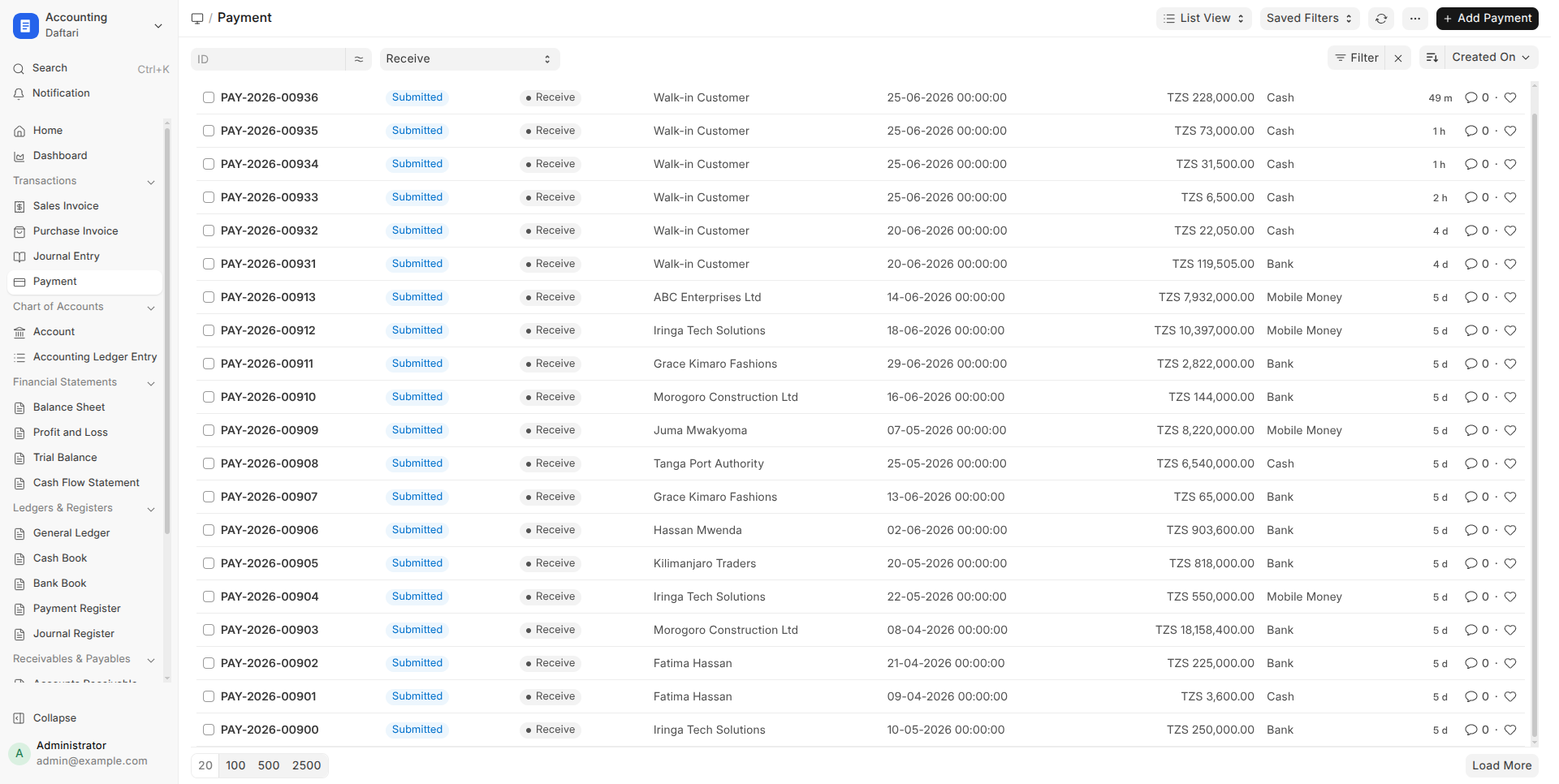
When the customer pays (cash, bank transfer, or Mobile Money), go to Payments → Payment → New or click "Create Payment" directly from the invoice.
| Field | What to Fill |
|---|---|
| Payment Type | Receive (money coming IN) |
| Customer | Safari Garden Restaurant |
| Amount | TZS 365,800 |
| Payment Method | Bank Transfer / Cash / Mobile Money |
| Invoice Reference | Link to SINV-2025-00047 (the invoice) |
Once submitted, the invoice status changes from Unpaid to Paid & Delivered. If they only pay part of the amount, it shows as Partly Paid with the remaining balance.
Buying from a Supplier (Purchase Invoice)
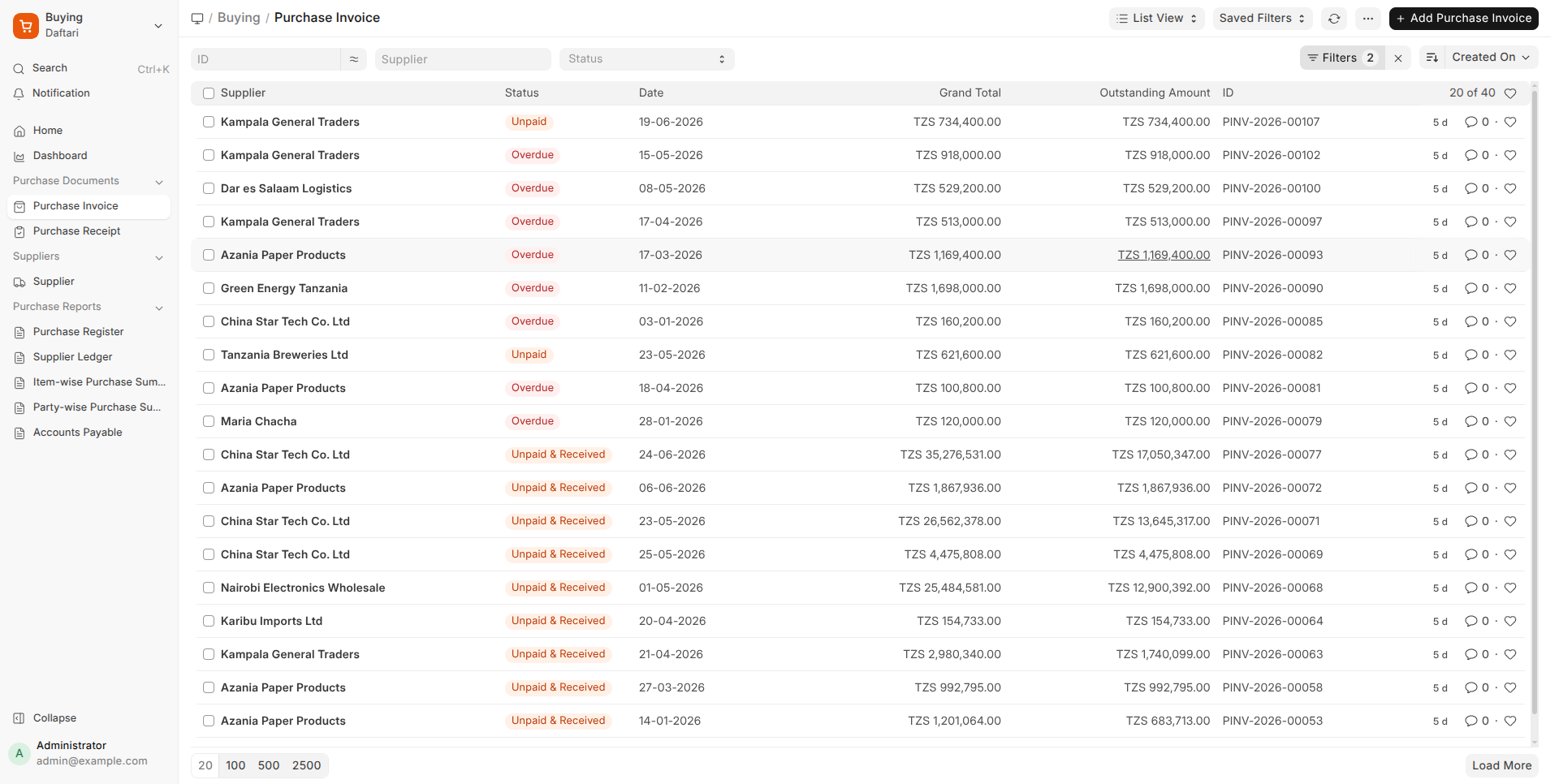
When you receive goods from a supplier and get their invoice, record it in Buying → Purchase Invoice → New.
Supplier: Tanzania Breweries Ltd · Their Invoice No: TBL/2025/4892 · Items: Azam Soda 24-pack × 50 cases @ TZS 22,000 = TZS 1,100,000 | Water 500ml × 100 cases @ TZS 8,500 = TZS 850,000 · Total: TZS 1,950,000 · Credit terms: 45 days
Tick "Update Stock on Submit" so that your stock levels go up automatically when you submit this purchase invoice. No need to enter stock separately.
Paying a Supplier
Go to Payments → Payment → New. Set Payment Type to Pay (money going OUT). Link it to the purchase invoice you are settling. Your bank balance reduces and the supplier invoice is marked as paid.
Manual Adjustments (Journal Entry)
For transactions that are not invoices — like bank charges, depreciation, or paying for electricity — use Accounts → Journal Entry → New.
Debit: Electricity Expense · TZS 85,000 (your business cost goes up)
Credit: Cash · TZS 85,000 (your cash goes down)
Total Debit must equal Total Credit — this is the golden rule of accounting.
Sending a Quote Before the Sale
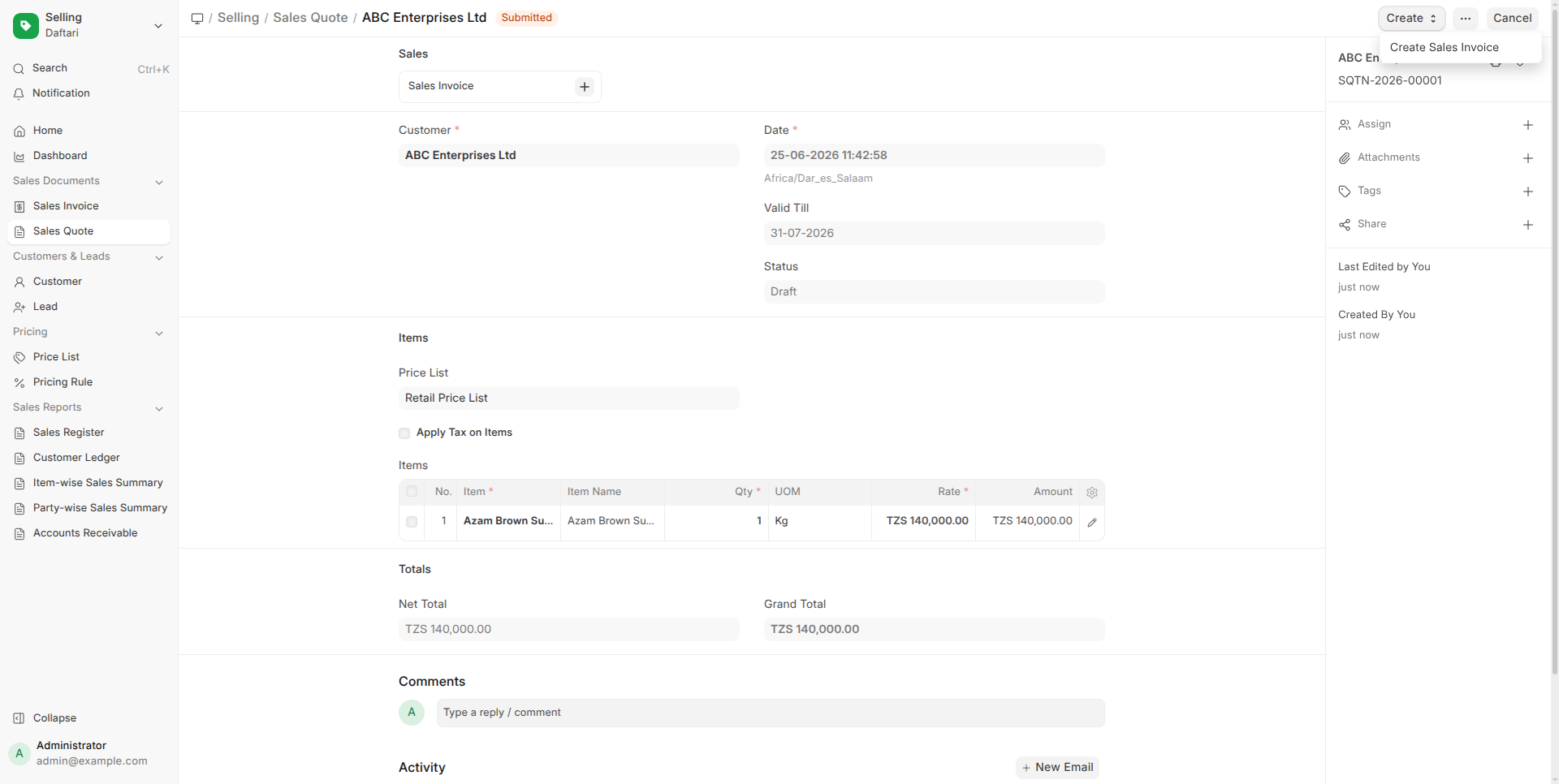
If a customer asks for a price before confirming the order, create a Selling → Sales Quote. A quote does not affect your accounts or stock. Once the customer confirms, click "Create Invoice" from the quote to convert it in one click.
Moving Stock Between Warehouses
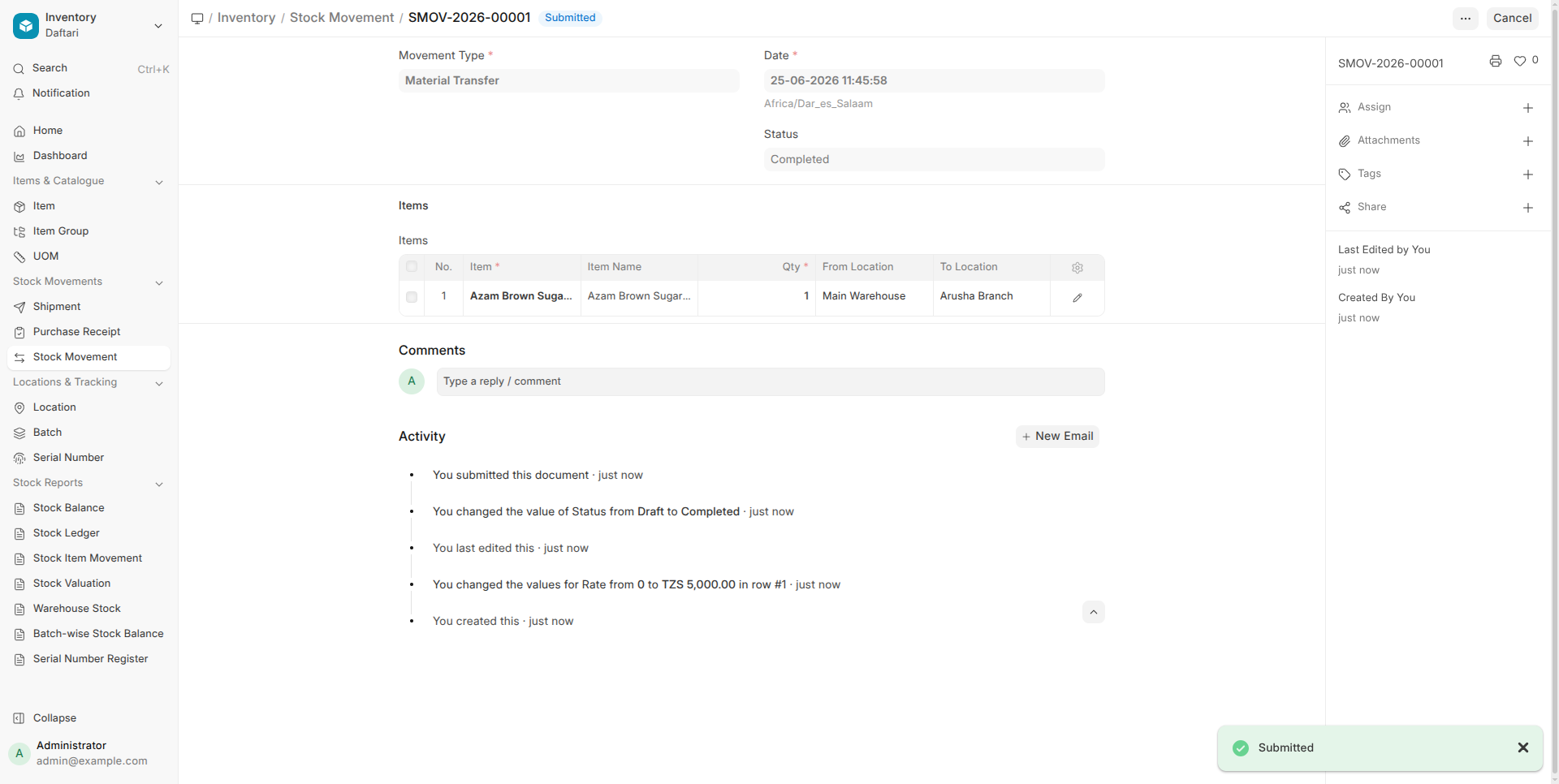
If you have more than one store or warehouse, use Inventory → Stock Movement to transfer goods. Select Movement Type: Transfer, choose From Location and To Location, then add the items and quantities.
Month-End Checklist
At the end of every month, do these checks to keep your books accurate and know exactly how your business is performing.
Check Who Owes You Money (Accounts Receivable)
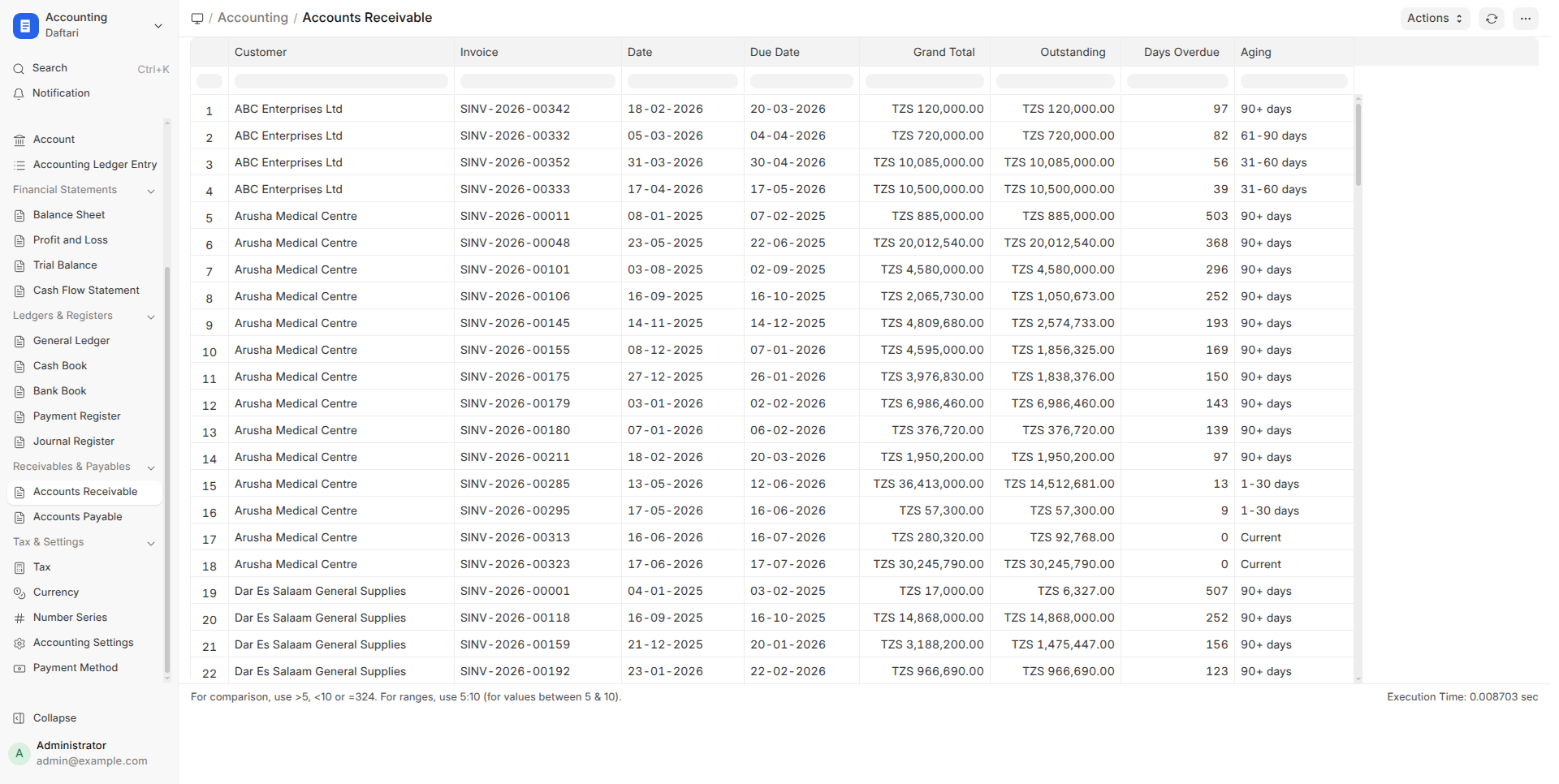
Go to Reports → Accounts Receivable. This shows every customer with an unpaid invoice, the amount, how many days it is overdue, and an aging breakdown (Current / 1–30 days / 31–60 days / 60+ days).
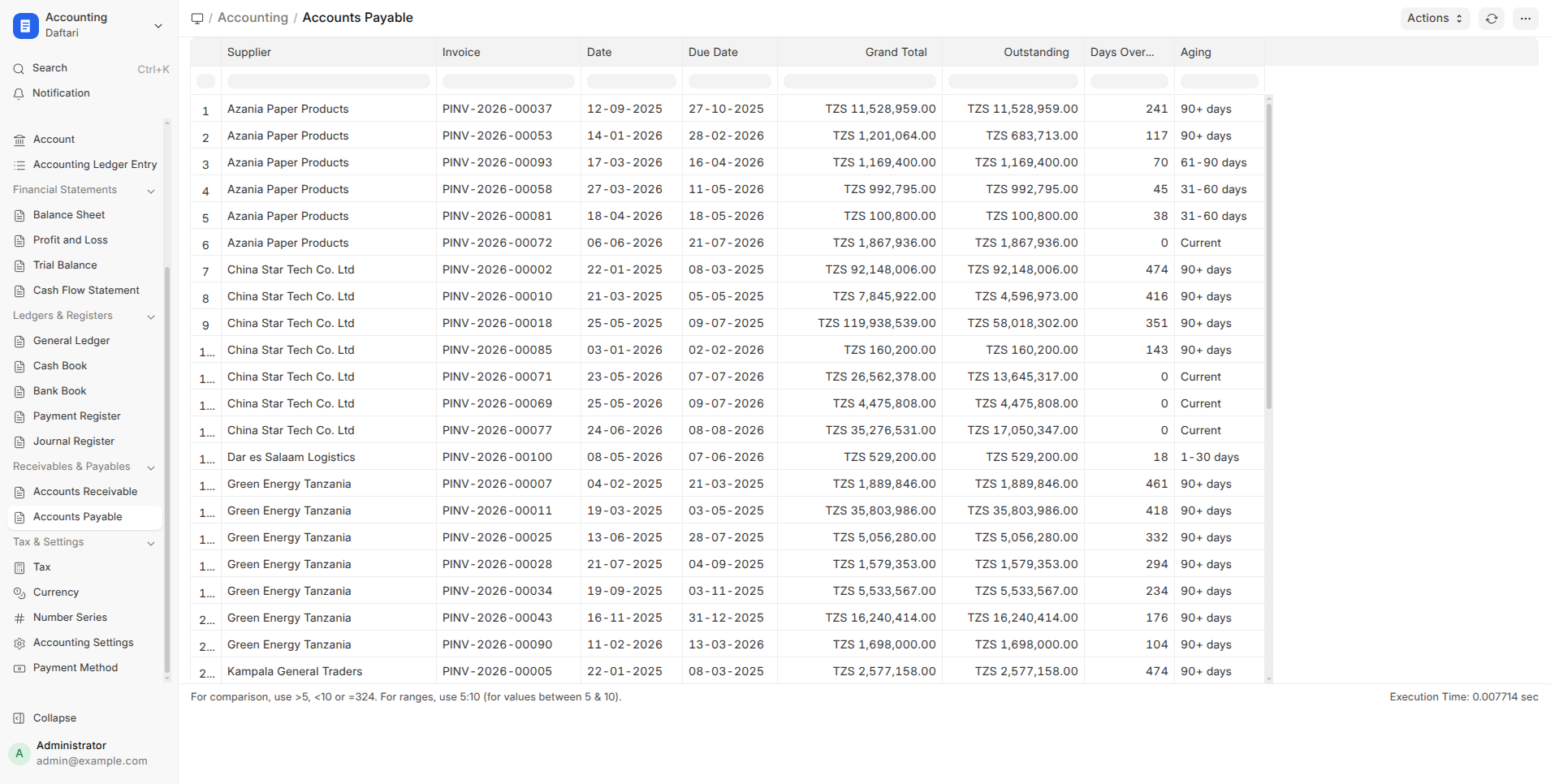
Check What You Owe to Suppliers (Accounts Payable)
Go to Reports → Accounts Payable. This shows every supplier invoice you have not yet paid, with due dates. Plan your cash to pay suppliers before they go overdue and affect your credit terms.
Run Payroll
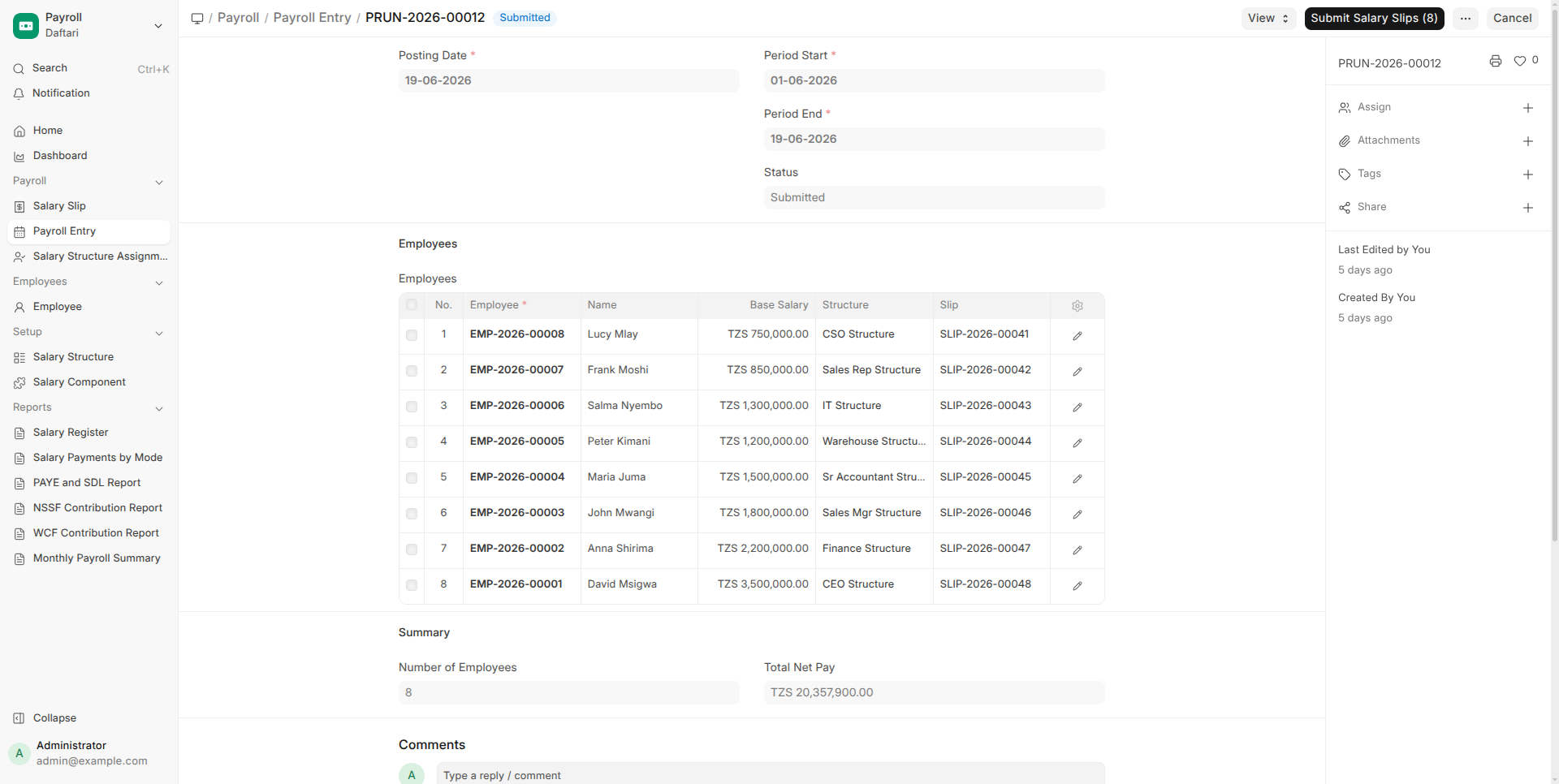
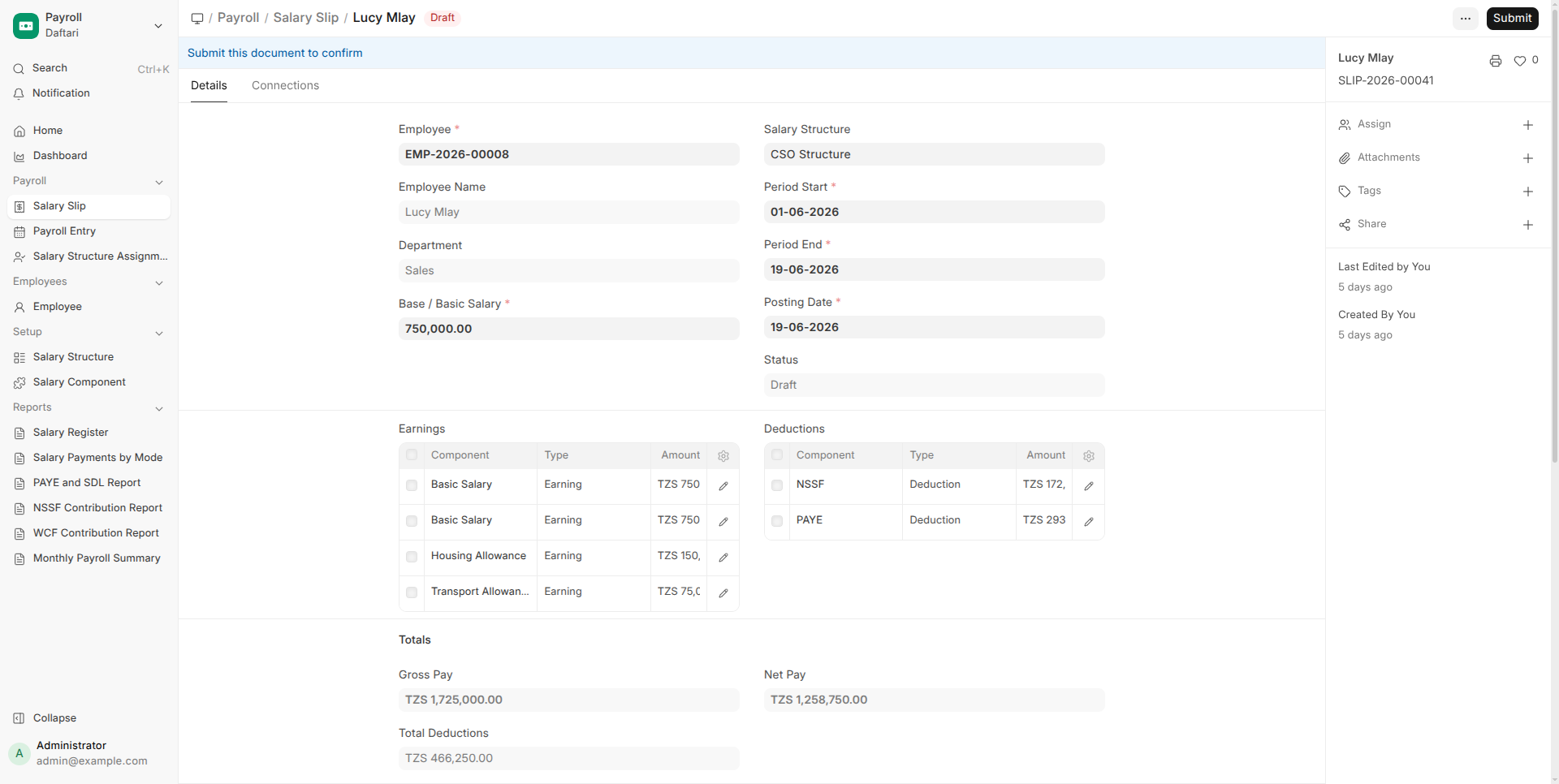
Go to Payroll → Payroll Entry → New. Select the month and click Process. Daftari creates a Salary Slip for each employee with PAYE, NSSF (10% employee + 10% employer), SDL (3.5%), and WCF (0.5%) already calculated. Review, then submit.
CEO (TZS 3,500,000 basic): PAYE TZS 720,000 · NSSF employee TZS 350,000 · Net Pay TZS 2,430,000
Sales Rep (TZS 850,000 basic): PAYE TZS 0 (below threshold) · NSSF TZS 85,000 · Net Pay TZS 765,000
Total payroll cost including employer contributions: TZS 14.7M
After submitting salary slips, create a Payment for each employee to record the salary disbursement (Bank Transfer or Cash).
Check Your Stock Levels
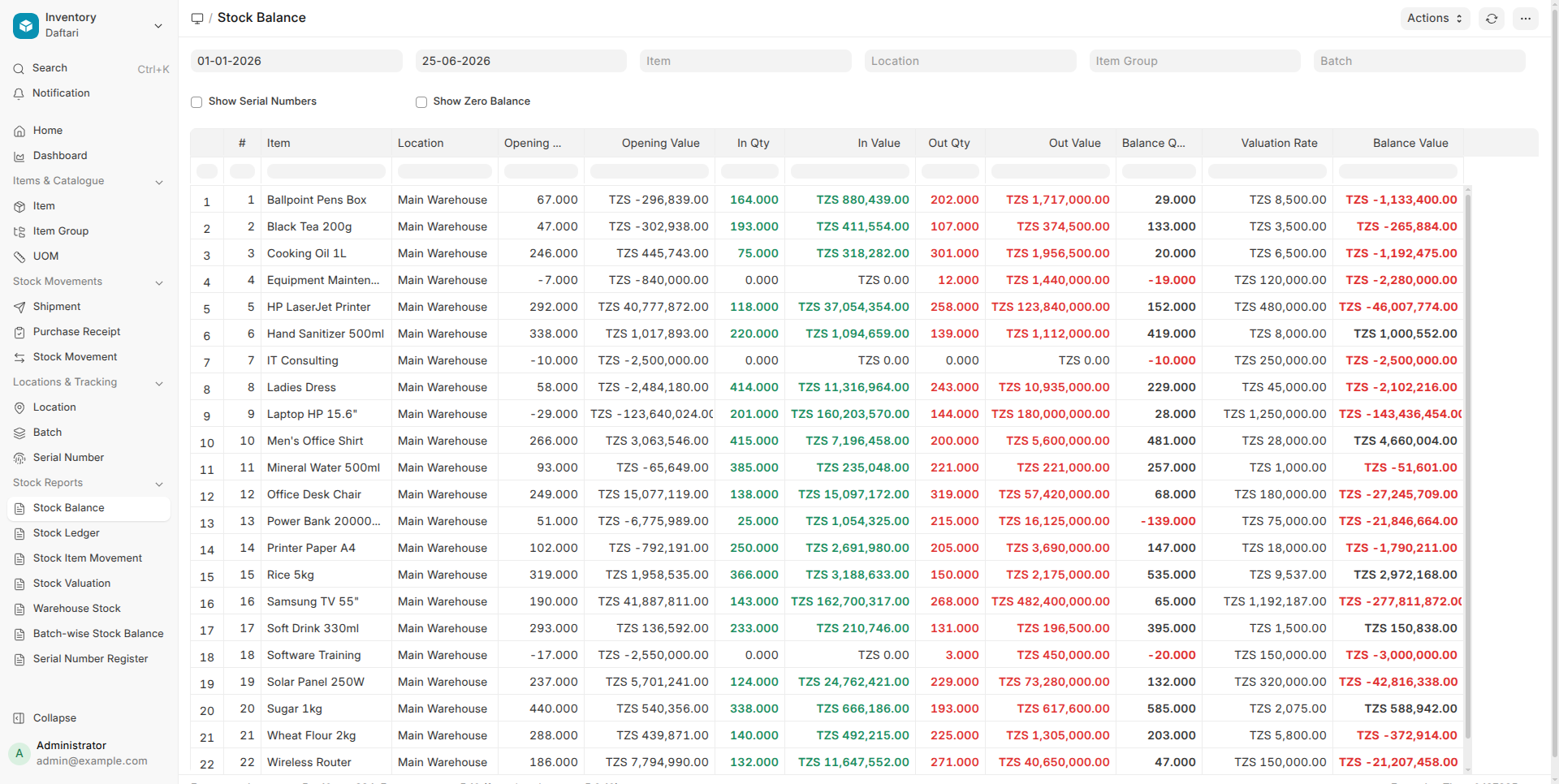
Go to Reports → Stock Balance. See exactly how many units of each product you have in each location, the value, and how much came in vs went out that month. Reorder anything that is running low before you run out.
Review Profit & Loss
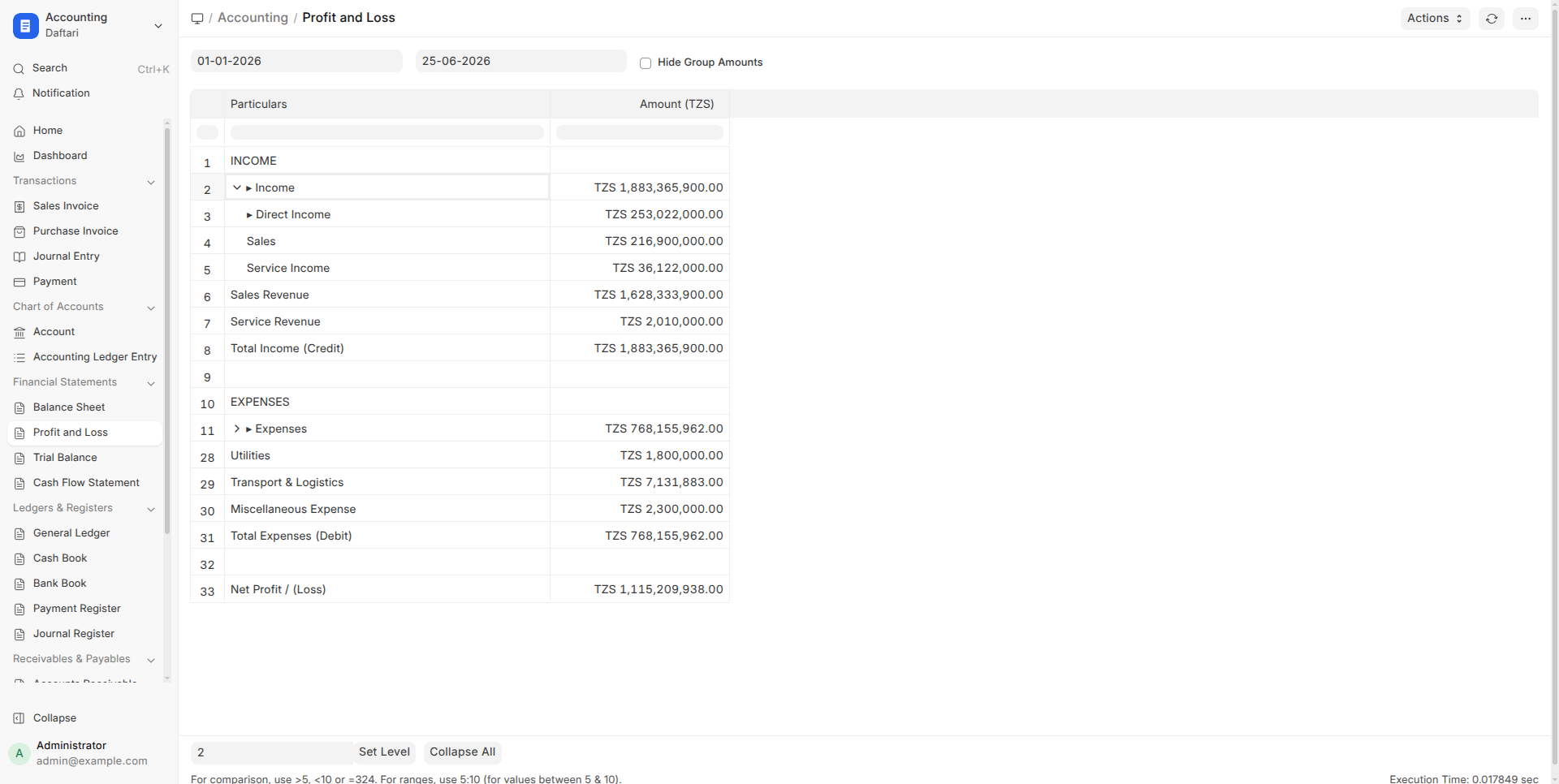
Go to Reports → Profit and Loss. Set the date range to the month just ended. You will see your total income, total expenses, and net profit or loss for the month — in real time, without waiting for an accountant.
Total Sales: TZS 4.2 Billion · Total Purchases: TZS 1.9 Billion · Gross Profit: TZS 2.3 Billion · Payroll: TZS 101M · Operating Expenses: TZS 85M · Net Profit: ~TZS 2.1 Billion
Business Reports — Always Real, Always Live
Every report in Daftari shows live data based on the transactions you have entered. There is no "closing" or "period lock" — check any report any time.
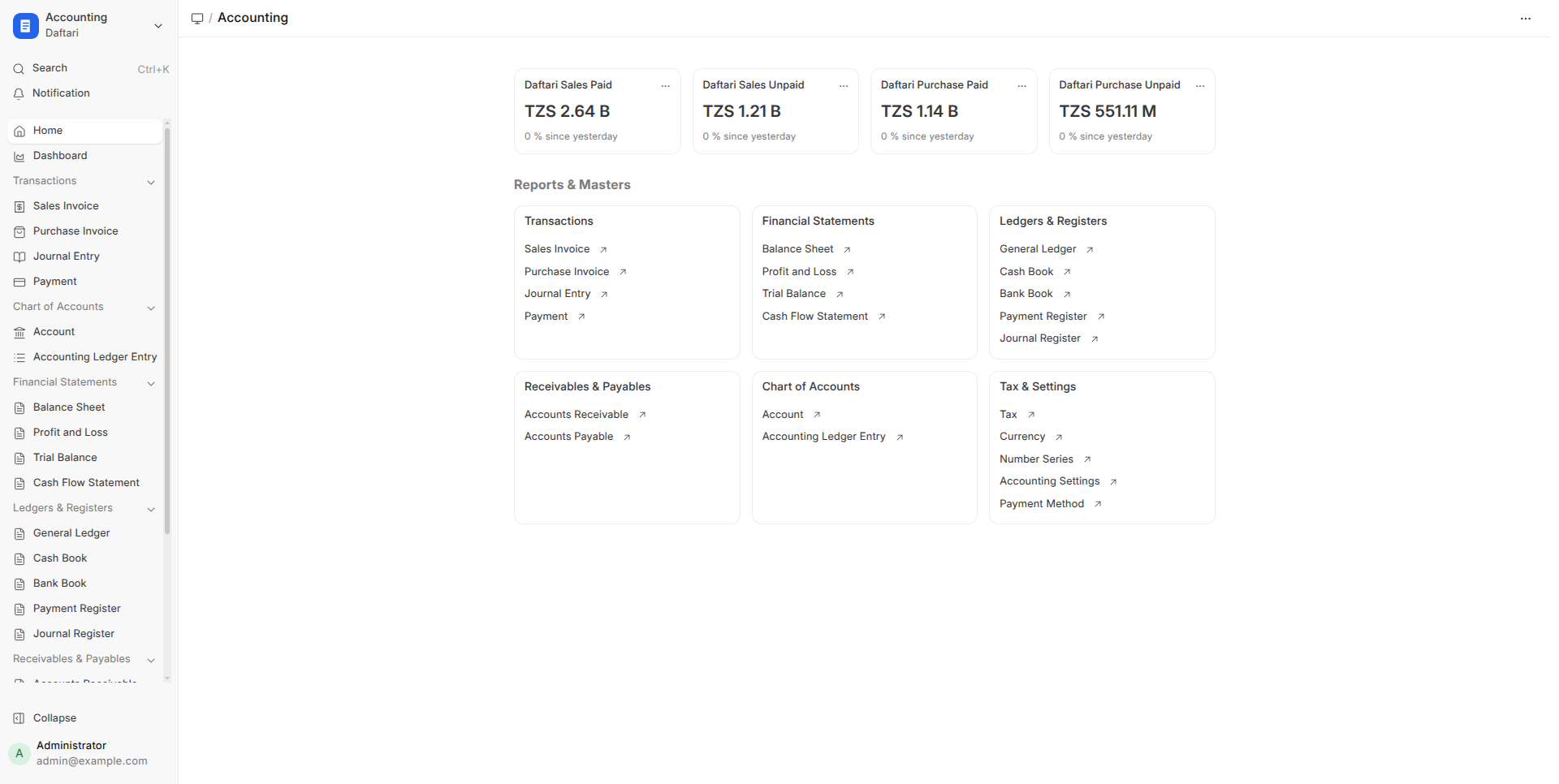
| Report | What Business Question It Answers | Where to Find |
|---|---|---|
| Profit & Loss | Did I make money this month? | Reports → Profit and Loss |
| Balance Sheet | What does my business own and owe right now? | Reports → Balance Sheet |
| Trial Balance | Are all my accounts balancing correctly? | Reports → Trial Balance |
| General Ledger | What are all the entries for a specific account? | Reports → General Ledger |
| Accounts Receivable | Who owes me money and how long overdue? | Reports → Accounts Receivable |
| Accounts Payable | Who do I owe money to and when is it due? | Reports → Accounts Payable |
| Cash Flow Statement | Where did my cash come from and go this month? | Reports → Cash Flow Statement |
| Cash Book | What are all the cash in/out transactions? | Reports → Cash Book |
| Bank Book | What are all the bank transactions? | Reports → Bank Book |
| Stock Balance | How much stock do I have in each location? | Reports → Stock Balance |
| Sales Register | What did I sell and to whom this month? | Reports → Sales Register |
| Purchase Register | What did I buy and from whom? | Reports → Purchase Register |
| Salary Register | How much did I pay each employee? | Reports → Salary Register |
| PAYE & SDL Report | How much tax do I owe TRA this month? | Reports → PAYE and SDL Report |
| NSSF Contribution | What is the NSSF for this month? | Reports → NSSF Contribution Report |
Employee Payroll — Tanzania Compliant
Daftari automatically handles all Tanzania statutory deductions. You set the salary, Daftari does the calculations.
| Deduction / Contribution | Rate | Who Pays | Notes |
|---|---|---|---|
| NSSF — Employee | 10% of Gross Salary | Deducted from employee | National Social Security Fund |
| NSSF — Employer | 10% of Gross Salary | Company pays on top | Employer matching contribution |
| PAYE | 0–30% (progressive) | Deducted from employee | Below TZS 270,000/month = zero tax |
| SDL | 3.5% of Gross Salary | Company pays on top | Skills Development Levy — paid to TRA |
| WCF | 0.5% of Gross Salary | Company pays on top | Workers Compensation Fund |
PAYE Tax Brackets (Monthly, 2025/2026)
| Monthly Taxable Income (TZS) | PAYE Rate |
|---|---|
| 0 — 270,000 | 0% |
| 270,001 — 520,000 | 8% |
| 520,001 — 760,000 | 20% |
| 760,001 — 1,000,000 | 25% |
| Above 1,000,000 | 30% |
Gross Pay: TZS 2,340,000
NSSF (employee 10%): − TZS 234,000
Taxable Income: TZS 2,106,000
PAYE: − TZS 451,800 (TZS 128,000 + 30% of TZS 1,106,000)
Net Pay to Employee: TZS 1,654,200
Employer Extra Cost: NSSF TZS 234,000 + SDL TZS 81,900 + WCF TZS 11,700 = TZS 327,600
Total cost to company for this employee: TZS 2,667,600/month
Ready to Try Daftari?
The demo site is live and fully loaded with 18 months of realistic Tanzania business data — customers, suppliers, invoices, stock, payroll, and all reports. Log in and explore freely.
| Demo Site | Details |
|---|---|
| URL | daftari.iota.co.tz |
| Username | Administrator |
| Password | provided by your Daftari contact |
| Data | Jan 2025 – Jun 2026 · 371 invoices · 355 payments · 8 employees |
| Currency | Tanzanian Shilling (TZS) |